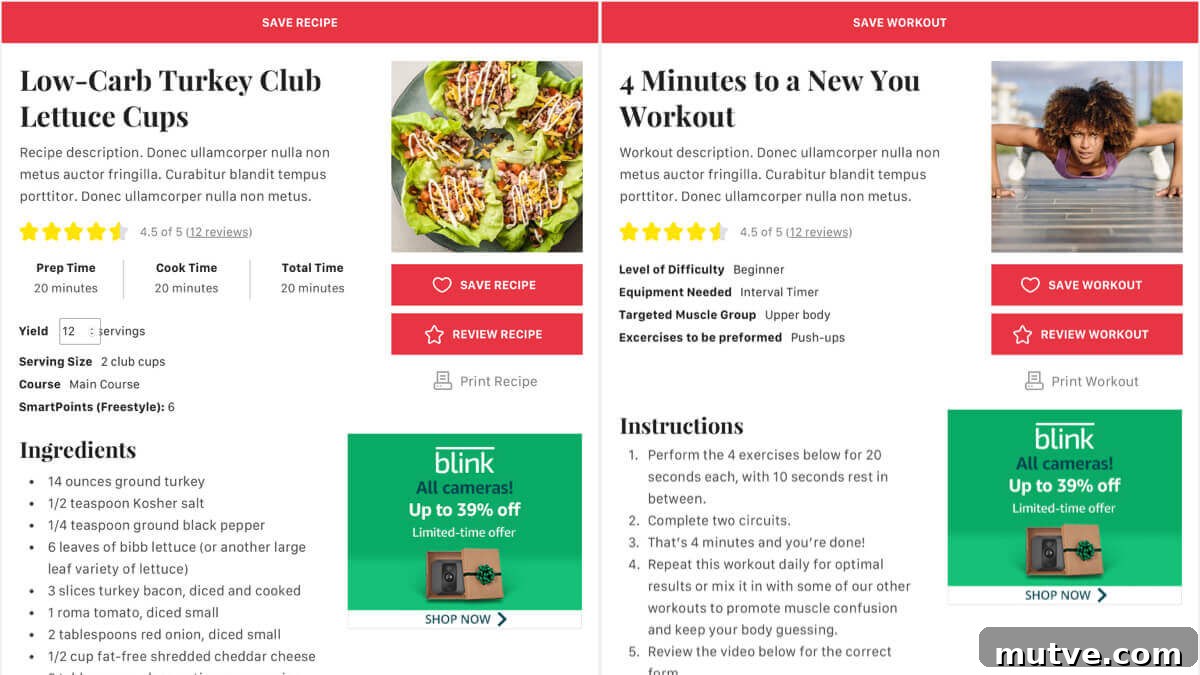
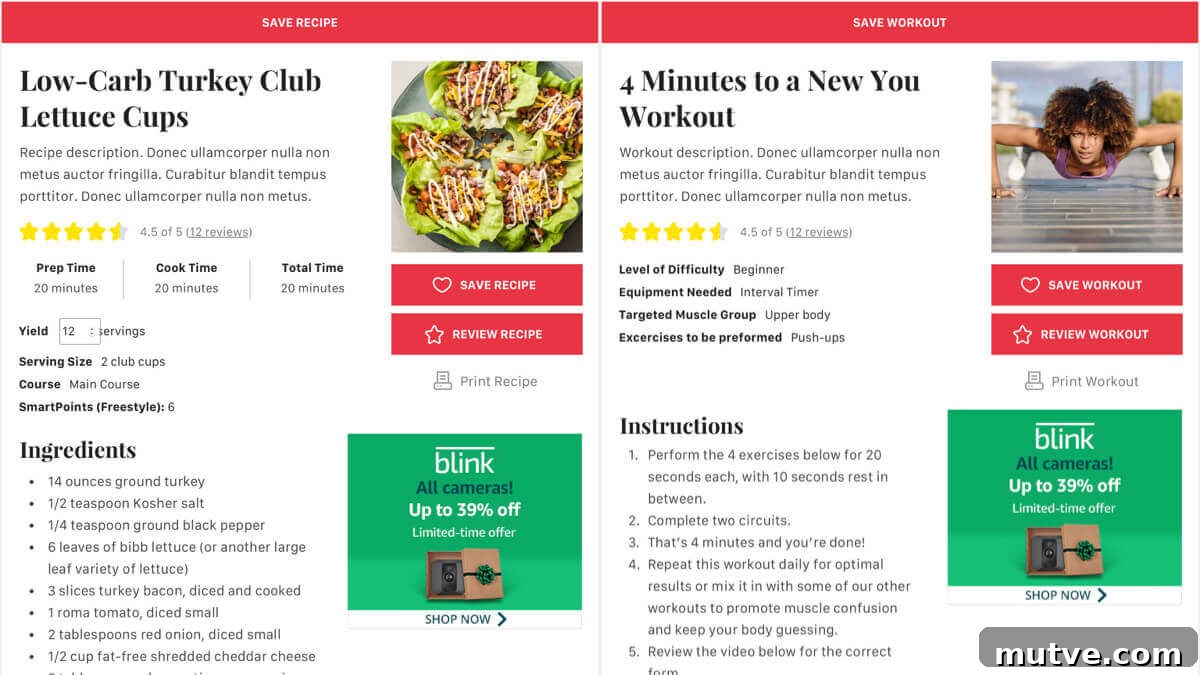
The WP Recipe Maker editor includes standard fields such as cook time, ingredients, instructions, and other common recipe elements. If you need to include additional information—like Weight Watchers SmartPoints, workout details, or any specialty data—you can add custom fields and display them on your recipe cards.
Some sites, for example, display SmartPoints, difficulty levels, or targeted muscle groups that aren’t available in the default recipe fields. Custom fields let you store that data with each recipe and control how and where it appears on the page.
Table of Contents
- Adding custom fields
- Using custom fields when creating a recipe
- Displaying custom fields in your recipe card
Adding custom fields
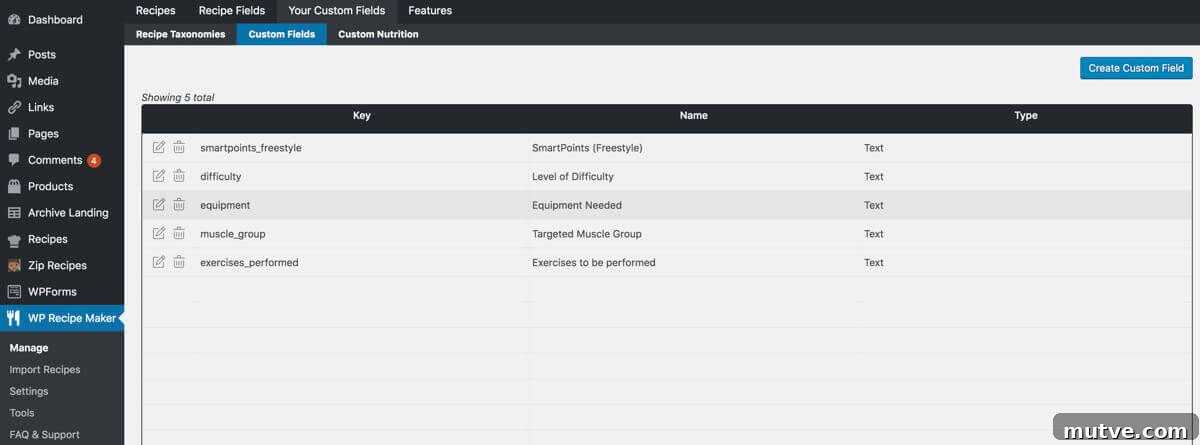
To create custom fields, open the WordPress admin and navigate to WP Recipe Maker > Manage. From there click the Your Custom Fields link, and choose Custom Fields from the secondary navigation. This opens the interface where you can add, edit, and remove custom field definitions used across all recipes.
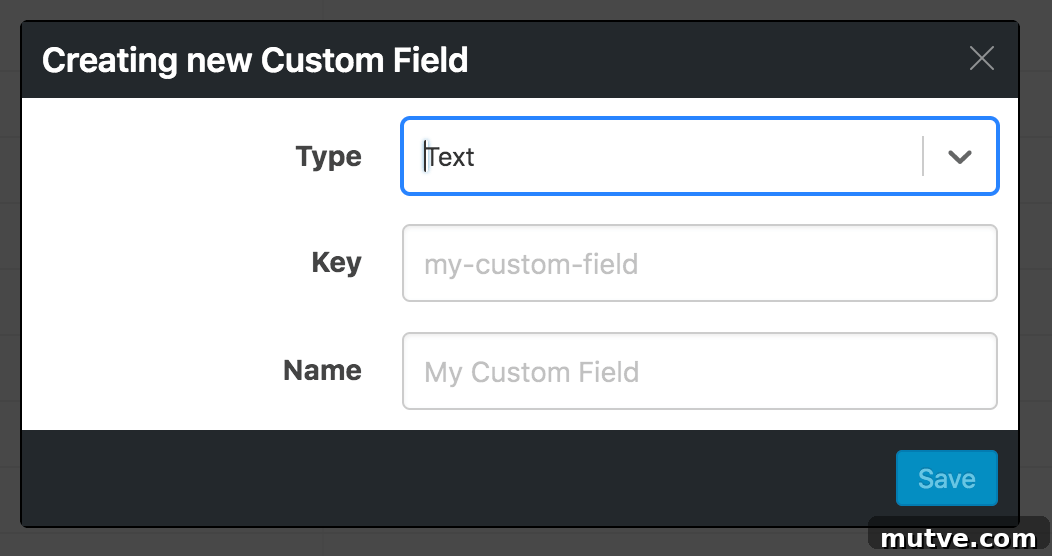
Click the Create Custom Field button in the top right to add a new field. In the dialog pick the field type (for example: text, number, image, or select), then enter a key and a name. The key is a machine-readable identifier used by the plugin and in templates; it should be lowercase with no spaces. Use hyphens or underscores to separate words (for example: smartpoints, difficulty_level, targeted_muscle).
Choose a descriptive name that will be easy to recognize when assigning or editing the field on individual recipes. If you plan to display the field on your recipe card, the name and key help you find and configure it in the template editor.
Using custom fields when creating a recipe
After you define custom fields, they become available when creating or editing a recipe. Open any recipe post in the editor and scroll down to the Custom Fields section. You’ll see the fields you created, each with an input appropriate to its type. Fill in values such as SmartPoints, difficulty level, targeted muscle groups, or any other extra details you want associated with that recipe.
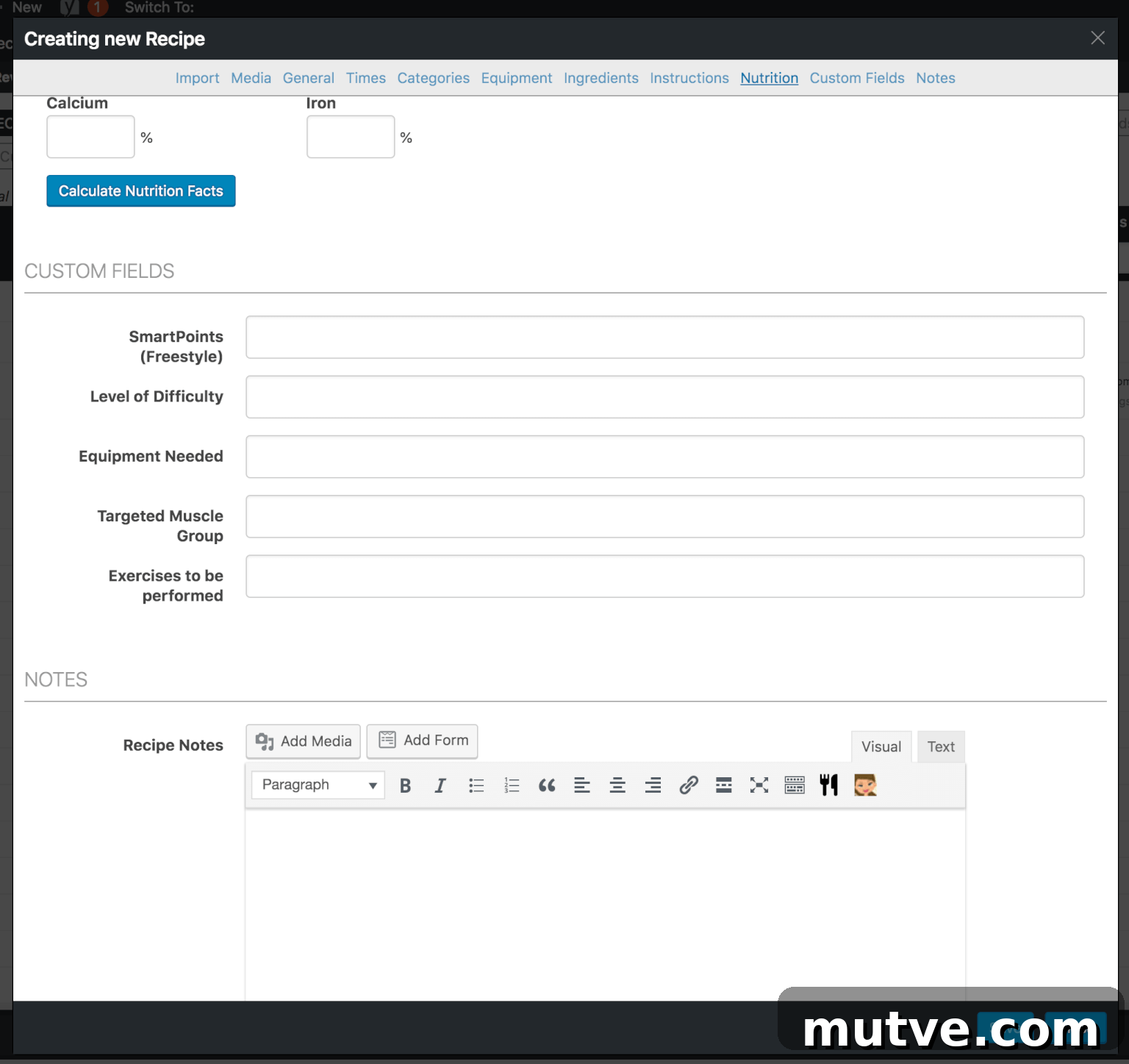
Tips for consistent data entry:
- Decide on a consistent format for values—e.g., numeric points, simple labels like Easy/Medium/Hard, or comma-separated lists for multiple muscle groups.
- Use the same spelling and capitalization so templates and searches can match reliably.
- If you use an image field, upload appropriately sized images to avoid layout or performance issues.
Keeping field values consistent improves site usability and makes it easier to style or query posts by those fields later.
Displaying custom fields in your recipe card
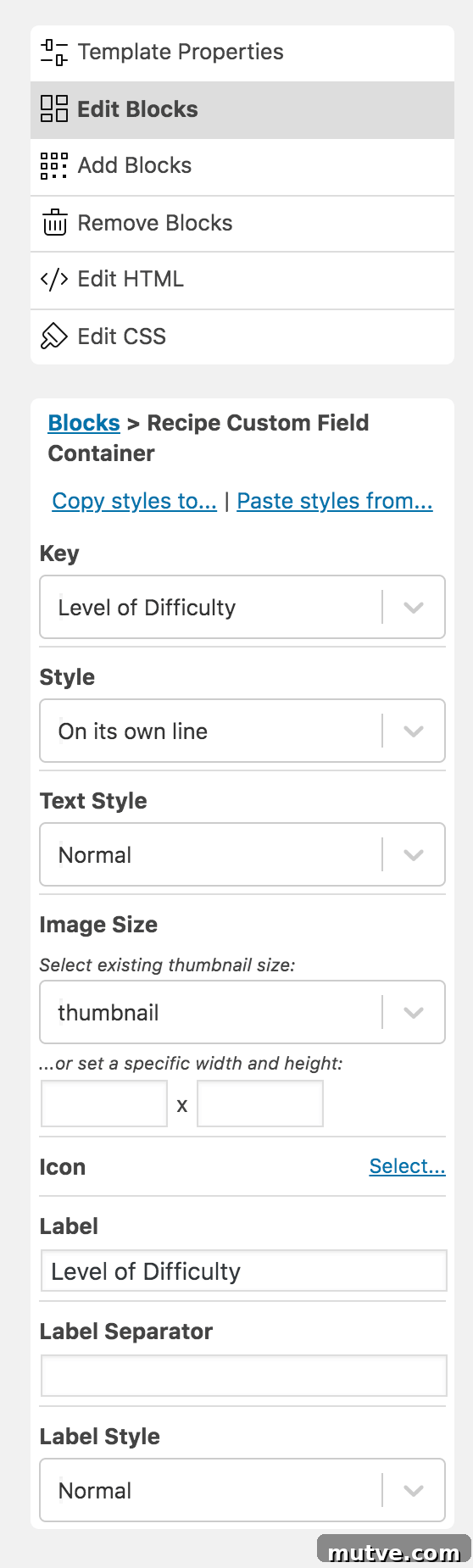
To show custom fields on the front end, edit your recipe card template in WP Recipe Maker. Go to WP Recipe Maker > Settings and open the Template Editor. Choose the template you want to modify and click Edit Template.
In the template editor, click Add Blocks and select the Recipe Custom Field Container. Choose where it should appear in relation to your existing blocks—above the ingredients, below the notes, or wherever it makes sense for your layout. After placing the container, use the Edit Blocks tab to pick a specific custom field from the dropdown and configure display options such as layout style, label text, and text styling.
When adding the field to the template, set a clear Label so readers immediately understand the value (for example: “SmartPoints”, “Difficulty”, or “Targeted Muscle Group”). You can also control whether the label appears on its own line or inline with the value, and select additional styling to match your theme.
Save the template and exit the editor. Visit a recipe that contains the custom field to confirm it displays as expected. If a custom field value is missing for a recipe, the template will not show an empty label if you’ve configured it to hide empty fields.
Custom fields are powerful for tailoring the recipe experience to your audience—whether you need nutrition data, program-specific scoring, workout details, or any other extra information. By defining fields consistently and adding them to your template in logical places, you give readers useful, searchable, and well-presented information that complements your recipes.